Compare your pages
Molt opens key pages on both themes and names what changed, section by section.
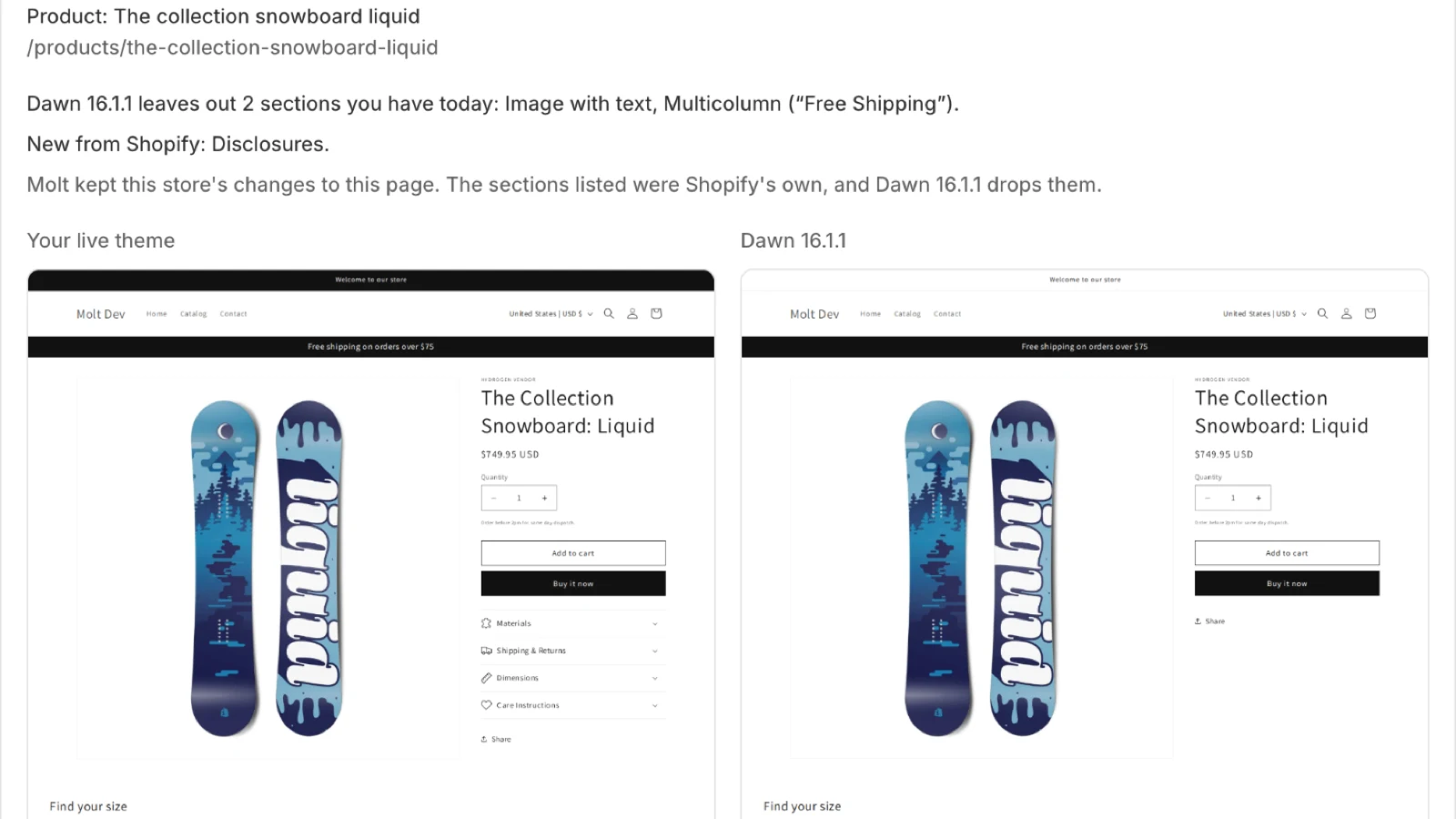
Under How your pages look, Molt shows each page on your original theme and on the upgrade.
Which pages
Molt opens your home page, all products, one collection, one product, the cart, search results and the contact page. A page that fails on both themes is left out, because the upgrade didn't cause it.
What the groups mean
| Group | Meaning |
|---|---|
| Leaves out | The release removed a section you have today |
| New from Shopify | The release added a section |
| Restyled by Shopify | The same sections, with the new release's styling |
| Look the same on both | No difference Molt could find |
The banner at the top lists every part of your store the release leaves out, including ones on pages Molt didn't open.
Keep my current layout
Where a release leaves out a section on a page, click Keep my current layout. Molt puts your layout back on the draft and compares that page again. The same place offers the release's layout if you want to switch back. Layout choices close once you publish. Roll back to change them.
Password-protected stores
Visitors to a locked store see only the password page, and so does Molt. The review page asks for your storefront password:
- Find it in your Shopify admin under Online Store, Preferences.
- Enter it under How your pages look, and click Compare my pages.
Molt checks the password, compares your pages and uses it for later upgrades. It's stored encrypted and deleted when you uninstall. To remove it sooner, click Remove it on any upgrade's page. This password is separate from your Shopify login.
Comparing by eye
A comparison checks sections, headings, script errors and pixels. Interactions such as opening a cart drawer or adding a product aren't exercised. Click Preview the upgrade and try the things your customers do most.